For full instructions about entering data and data set formats see Entering Data.
Data sets can be created both within and outside Simply Tagging. The data is stored in a simple CSV or comma delimited file
Some example data sets are supplied with the program. These will be installed with the program, in the folder My Documents/Simply Tagging Data.
DemoFull.csv is an example of a data set where individual capture histories have been entered.
Jolly_summary.csv is mark-recapture summary data organised for the Jolly-Seber method and
Closed_summary.csv holds the summary data needed for the closed methods. See a simple example of data entry to show an example of the entry of closed summary data.
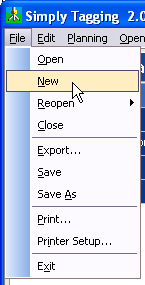
To create a new data set within Simply Tagging select File: New from the drop-down menus.
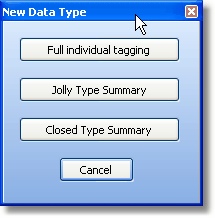
You will be presented with a window that offers 3 types of data for entry, Full individual tagging, Jolly-Seber summary and Closed summary.
Full individual tagging
If you have selected to enter the capture history of each individual you will be presented with an empty grid which you will need to fill in for every individual.
Subsetting your data by size or sex
Jolly-Seber summary
If you have selected to enter your data as a Jolly-Seber summary table then you will be asked to enter the number of samples taken, and will then be presented with an empty grid which you will need to fill.
Closed summary